|
PhotoAmigo HELP
1. I need help CREATING a new PhotoAmigo
Account.
2. I need help UPLOADING images.
3. I need help managing MY ARCHIVE of
images.
4. I need help CUSTOMIZING My PhotoAmigo
Album Styles.
5. I need help ADDING a PhotoAmigo to My
PhotoAmigo Album.
6. I need help ADDING E-mail
Addresses to My Addresses.
7. I need help ADDING LINKS to My
PhotoAmigo Album.
8. I need help understanding My Stats.
9. I need help SEARCHING for images on
PhotoAmigo.
10. I need help SEARCHING for users on
PhotoAmigo.
11. I need help BROWSING PhotoAmigo
directories.
12. I need help understanding the
PhotoAmigo User Display information.
13. I need help
with guestbook comments: how to insert effects like html, images and links (using BBCODE).
Help: Creating a new PhotoAmigo Account
Follow these step-by-step instructions to create your own
PhotoAmigo Account today.
To create your PhotoAmigo Account, just
click here or click the link at the top of our homepage that says
"Create Your Own PhotoAmigo Album!" This link will take you to the sign-up page.
There, you'll enter all the information you need to create your own PhotoAmigo
Account. Once on the sign-up page, you'll enter information for the following
fields:
1. USERNAME:
(20 Character Maximum) Enter a unique Username to identify yourself on
PhotoAmigo. Your Username must be at least five (5) characters in length and
cannot contain special characters (except underscore). Your Username does not
have to be your legal name. (Example Usernames:
Sarah, John2002, Foto_Star, Harleymama) Make note of your Username.
2. PASSWORD:
Passwords must be at least eight (8) characters in length and must contain at
least one digit. Make note of your Password.
3. CONFIRM PASSWORD:
Confirm your password by typing it again.
4. PASSWORD QUESTION:
Choose a Password Question from the drop down menu. You'll be asked this
question if you forget your password.
5. PASSWORD ANSWER:
Enter the answer to the Password Question you chose. You'll be asked to give
this answer if you forget your password. Make note of your password answer.
6. CITY:
Type the name of the City where you live.
7. STATE/PROVINCE:
Select the State or Province where you live from the drop down menu.
8. COUNTRY:
Select the Country where you live from the drop down menu.
9. E-MAIL ADDRESS:
Enter your e-mail address. This must be a valid e-mail address that you check
frequently. A confirmation e-mail will be sent to this address that will
provide final instructions on activating your PhotoAmigo Account. Your e-mail
address is the primary means PhotoAmigo.com will communicate with you. PhotoAmigo
respects your privacy and does not share or sell e-mail addresses.
10. CONFIRM E-MAIL:
Confirm your e-mail address by entering again. This will insure that your
e-mail address has been entered accurately.
11. ACCOUNT TYPE:
Choose the type of PhotoAmigo Account you wish to create. There are three (3)
types of PhotoAmigo Accounts:
PRO, PREMIUM,
and
BASIC (Limited Features).
View the chart below for a detailed comparison of the three account types.
| FEATURES |
| Image
Uploads/ Day |
3 |
10 |
Unlimited |
| Total Archive |
100 |
1000 |
Unlimited |
| Album
Styles |
X |
YES |
YES |
| Camera
Icon |
X |
YES |
YES |
| Slideshow
|
X |
Yes |
YES |
| Comments/
Image |
10 |
50 |
Unlimited |
| Favorites |
10 |
50 |
Unlimited |
| Guestbook
Filters |
X |
YES |
YES |
| Addresses |
10 |
40 |
Unlimted |
| Amigos |
10 |
50 |
Unlimited |
| Hyperlinks |
4 |
10 |
Unlimited |
| Mobile
uploads |
X
|
YES
|
YES
|
| Go
Premium! |
| Yearly |
*Basic (Free) Accounts may expire if inactive for 30 days.
12. PROMOTION CODE:
If you received a promotion code enter it here to redeem its value.
13. SECURITY CODE:
Enter the ANTI-BOT code you see in the silver box. This is a security feature
that prevents automatic registration by computer programs. The code is not case
sensitive.
14. SIGNUP NOW:
Click the Signup Now button to submit the account information you have entered
and continue to Check Out with Pay Pal. By clicking the Signup now button you
acknowledge your total agreement with and full understanding of the PhotoAmigo
Terms of Service. If you do not agree or do not understand these terms click
Cancel.
Help: Uploading an image to your PhotoAmigo Album
After you've created and activated your PhotoAmigo
account,
1. Log in with your Username and password.
2. Click the link in the orange header that says UPLOAD.
This will take you to the UPLOAD page.
3. Click the
BROWSE
button to locate the image on your computer that you want to upload. The image
must be 4MB or less in file size and you can only upload one image at a time.
Your image must be in one of the following file formats: jpg., gif, tiff, or
png.
4. Enter the caption text for your image. There is a 5000
character max for captions.
5. Choose a MAIN CATEGORY and a SUB CATEGORY for your
image (optional). Categorizing your images will allow them to show up in search
results on PhotoAmigo.com.
6. Enter relevant key words for your image (optional).
Separate each key word with a space.
7. After you've chosen an image to upload, click the
UPLOAD
button OR click the UPLOAD AND GO TO MY ALBUM button. This may take a moment,
particularly at peak hours, so please be patient.
Help: Managing MY ARCHIVE of images
After you upload images to your PhotoAmigo Album, those
images are stored in your image archive until you delete them. To view your
image archive, click the link in the orange header called
MY ARCHIVE. Here
you can view thumbnails of all the images you have uploaded. You can also
DELETE images, or EDIT image captions and categories.
To
DELETE
an image from your archive,
1. Log in with your Username and password.
2. Click the link in the orange header that says MY
ARCHIVE. This will take you to your image archive.
3. Click the DELETE button under the image you want to
remove from your archive.
To
EDIT
an image caption, main category or sub category, or Tags,
1. Log in with your username and password.
2. Click the link in the orange header that says MY
ARCHIVE. This will take you to your image archive.
3. Click the EDIT button under the image you want to
edit. Your caption and category information for that image will appear in an
expanded cell.
4. You can now edit your caption for that image, select
new main and sub categories, or enter new Tags for that image.
5. To CANCEL your changes click CANCEL. To save your
changes, click UPDATE.
Help: Customizing your PhotoAmigo Album Styles
Only PhotoAmigo Pro and Premium members can customize their albums.
If you are a PhotoAmigo Pro or Premium member,
1. Log in to PhotoAmigo.com with your Username and
Password.
2. Click the link in the orange header that says MY STYLES.
3. Once on the
MY STYLES page,you
can choose your album fonts, font colors, link
colors, and your background color and/or background pattern. You'll see preview
swatches of your color and/or pattern choices. Your customization choices apply
to your PhotoAmigo Album only.
4. Click the SUBMIT button or the SUBMIT & GO TO MY
ALBUM button at the bottom of the page and your customizations will be applied.
Help: Adding a PhotoAmigo to your PhotoAmigo Album
There are two (2) ways to ADD a PhotoAmigo to your album.
1. Log in with your UserName and Password. Then, go to the
PhotoAmigo Album of the user you wish to add to your list of PhotoAmigos. Next,
click the link on the user's PhotoAmigo Album that says
ADD TO MY PHOTOAMIGOS.
The user will be added to your list of PhotoAmigos.
OR
2. Log in with your Username and Password. Then, go the
page called
MY PHOTOAMIGOS
and enter the Username of the PhotoAmigo you wish to add and click the ADD
button. The user will be added to your list of PhotoAmigos.
NOTE: If the user is already in your list of PhotoAmigos,
and you try to ADD the user, you will be directed to your list of PhotoAmigos to
show you that the user you tried to add is already in your list of PhotoAmigos.
To
DELETE
a PhotoAmigo from your Album, click the DELETE button next to the PhotoAmigo you
want to remove from your list.
Help: ADDING e-mail addresses to My Addresses (Address Book)
You can create and manage an e-mail address book on
PhotoAmigo in
MY ADDRESSES.
By doing this, you can choose to automatically notify your friends and family
each time you upload new images to your PhotoAmigo Album.
To add an e-mail address to your address book,
1. Log in with your Username and Password. Then, click on
the link in the orange header called
MY ADDRESSES.
2. Enter one (1) e-mail address in the field provided.
3. Click the ADD button. The e-mail address will be added
to your list of addresses. Repeat this process to add more e-mail addresses to
your address book.
NOTE: If you have entered e-mail addresses in your
PhotoAmigo Addresses, you will have the option to automatically notify your
addresses when you upload an image. You can select to notify some or all of
your addresses. If you choose to do this, PhotoAmigo will send an e-mail to the
addresses you've chosen to notify. The e-mail will contain a link to your
PhotoAmigo Album, making it easy for friends and family to click and view your
PhotoAmigo Album.
To
DELETE
an e-mail address, click the DELETE button next to the e-mail address you want
to remove from your list.
Help: ADDING Links to My PhotoAmigo Album
You can add hyperlinks to your PhotoAmigo Album in
MY LINKS.
The links you add will be displayed on the lower right of your PhotoAmigo Album.
To add a link to your PhotoAmigo Album,
1. Log in with your Username and Password. Then, click on
the link in the orange header called
MY LINKS.
2. Enter a title for your link. (Example:
Google)
3. Enter the web address for your link, also known as the
URL. The link address should start with
http://
(Example: http://www.google.com)
4. Click the ADD button. The link will be added to your
list of links.
To
DELETE
a link, click the DELETE button next to the link you want to remove.
Help: Understanding My Stats
The page called
MY STATS
shows the number of VIEWS and the number of VISITS for each image in your
PhotoAmigo Album. VIEWS represent the number of unique daily PhotoAmigo users
that have viewed the images in your album. VISITS represent the total number of
times your album has been visited by PhotoAmigo users.
For example, if a registered PhotoAmigo user goes to an
image in your album three times today, that would count as one VIEW and three
VISITS. The number of VIEWS you have determines the color status of your
PhotoAmigo Camera Icon.
See the Camera Color Chart for more
details.
Help: SEARCHING for images on PhotoAmigo
To search for images on PhotoAmigo, go to the
PhotoAmigo.com homepage and...
1. Select a MAIN CATEGORY from the drop down menu. (The
SUB CATEGORY menu will dynamically populate with options after you've selected
a MAIN category.)
2. Select a SUB CATEGORY from the drop down menu.
3. Enter any Tags in the Tags field if you wish
to refine your search.
4. Click SEARCH. The matching search results will appear
in the center column of the page in order of most recently posted, displaying a
thumbnail of the image, the main and sub categories that were selected for each
image, and the Tags, if any, that were entered for that image.
TIP: Images uploaded to PhotoAmigo.com can be categorized
and given Tags that describe the image. This is optional. Images that are
not categorized or given Tags will not appear in search results. However,
images that are categorized and given Tags are searchable. Categorizing
your images allows them to show up in search results and increases the
likelihood that they'll be viewed, which helps you graduate to the next camera
color level.
Help: SEARCHING for users on PhotoAmigo
To search for users on PhotoAmigo, go to the PhotoAmigo.com
homepage and...
1. Click the directory link called USERNAME.
2. Then, either BROWSE the alphabetical directory of
Usernames by clicking a letter of the alphabet,
OR
3. ENTER the Username or e-mail address of the person
whose album you want to find. If the Username or e-mail address is registered
on PhotoAmigo.com, you'll automatically be directed to that user's PhotoAmigo
Album. If the Username or e-mail is not registered with PhotoAmigo.com, you'll
see a message that the Username or e-mail address is not registered with
PhotoAmigo.com
Help: Browsing PhotoAmigo directories
To BROWSE the PhotoAmigo directories, go to the
PhotoAmigo.com homepage and...
1. Click on one of the following directories to browse:
USERNAME, STATE, COUNTRY, CAMERA LEVEL
The PhotoAmigo directories allow you to easily browse an
alphabetical list of all registered Usernames, as well as browse all registered
users by state, country, and camera level.
For example,
A. If you want to view an alphabetical list of all
PhotoAmigo Usernames, browse by USERNAME.
B. If you want to view the albums of PhotoAmigos who live
in California, browse by STATE and then choose California.
C. If you want to view the albums of PhotoAmigos who live
in Spain, browse by COUNTRY and then choose Spain.
D. If you want to view all PhotoAmigos at the Black Camera
level, browse by CAMERA LEVEL.
Help: Understanding the PhotoAmigo User Display
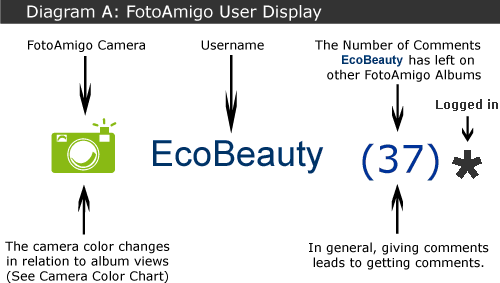
See Diagram A below.
Click here to view
the Camera Color Chart.
Help:
With guestbook comments: how to insert images and links.
PhotoAmigo comments allow BBCode AND
HTML - they are very similar and the table below shows what
we currently feature. This is the SECOND version of
our enhanced guestbook features. In the future we'll allow
more & more html in the guestbooks. So, for now, enjoy
some old school BBCode and simple HTML!
| HTML |
Effect |
BBCode {old
school} |
<b>bolded text</b> |
bolded text |
[b]bolded text[/b] |
<i>italicized text</i> |
italicized text |
[i]italicized text[/i] |
<u>underlined text</u> |
underlined text |
[u]underlined text[/u] |
<img src="http://www.photoamigo.com/fa1.gif"
/> |
 |
[img]http://www.photoamigo.com/fa1.gif[/img] |
<a href="http://www.PhotoAmigo.com">PhotoAmigo</a> |
PhotoAmigo
|
[url]http://www.PhotoAmigo.com[/url] |
<a href="http://www.PhotoAmigo.com">Text
Links to PhotoAmigo!</a> |
This Text Links to
PhotoAmigo! |
[url=http://www.PhotoAmigo.com]This
Text Links to PhotoAmigo![/url] |
|